
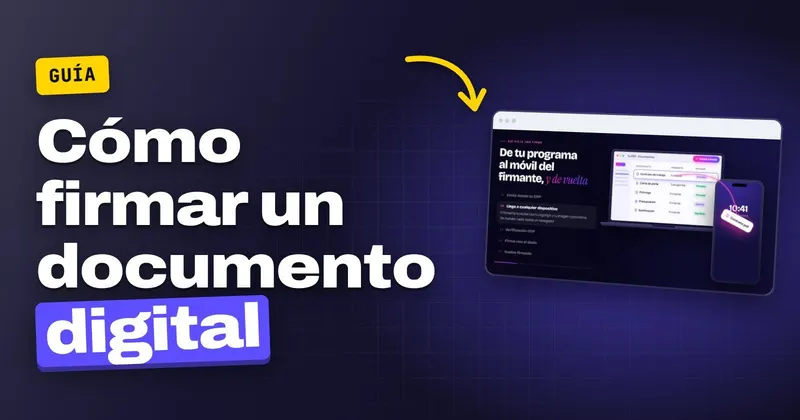
You have the contract ready in your management software, but the worker is already out on the farm and won't be passing by the office for another week. To sign a digital document you need three things: the final document, a channel to get it to the signatory (their email or mobile) and a record of how it was signed. Below you will find what to prepare, the steps one by one, what must be kept, the mistakes that force you to repeat the signature and how it works with InfoSign.
What you need before signing a digital document
"Digital signature" is used to mean different things. Regulation (EU) 910/2014, eIDAS, distinguishes three types of e-signature. The first is the simple one (art. 3.10). The second is the advanced one (art. 26). The third is the qualified one (art. 3.12): an advanced signature created with a qualified device and based on a qualified certificate. If you want to know which one suits each document, you will find it in simple, advanced or qualified signature: which one do you need.
This guide covers the everyday case in administration or HR: a document that you prepare and that someone else has to sign. It could be a worker, a customer or a haulier. Before sending it, have this ready:
- The finalised document. The contract, extension, addendum or quote in its final version. Any change after signing is detected, so a typo means sending it again.
- The signatory's contact details, correctly entered in the record in your management software: their email address and, if you are also going to send the code by SMS, their mobile number.
- How you are going to identify the signatory. It can be with a one-time code by email, also by SMS if you activate it, or by signing in person on a company tablet.
- Where you are going to store the signed document. The document and its evidence document must always go together.
How to sign a digital document step by step
The process is the same for an employment contract, an extension or a consignment note. We explain it as it is done with InfoSign, which starts from your management software and returns to it. If you would rather see it first by features, there is the page on signing documents online.
1. Choose the document in your management software
You open the worker's or customer's record, choose the document and send it for signing. InfoSign is "integrable with any ERP or management software". That way you don't have to export the PDF, upload it to another website or copy the signatory's email by hand. How it connects to your software is explained in e-signature software integrated with your ERP.
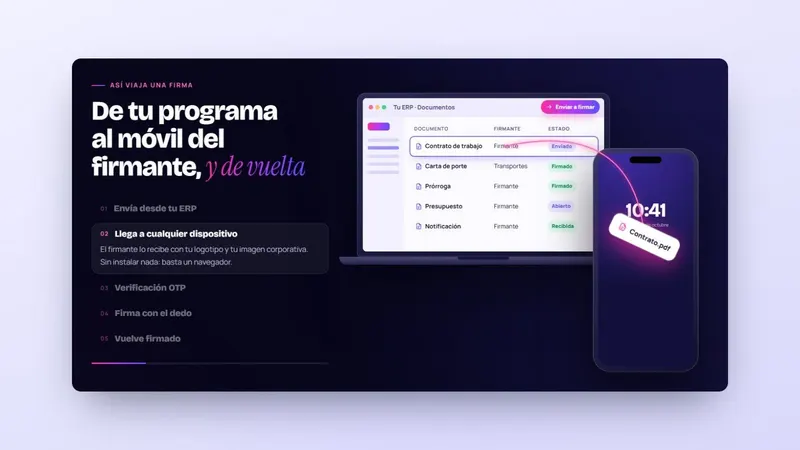
2. The signatory receives it with your corporate branding
The signatory receives the document with your logo and corporate branding on their mobile, tablet or computer. They open it in the browser, without installing anything. This screen shows the contract leaving the management software and arriving on the worker's mobile:
3. Confirm who they are with a one-time code
Before signing, the signatory receives a one-time code by email and, if the company activates it, also by SMS. They type it on the screen and that step is recorded. In SMS signing: how the OTP code works you can see which documents are worth activating SMS for.
4. Read the document and sign with your finger
The signatory reviews the document and signs on the screen with their finger, or with the mouse if they are on a computer. If they work in the field or on the road, they can sign it from wherever they are. For those cases there is more detail in mobile e-signature.
5. Track the status and send reminders
With monitoring you can see in real time which documents have been sent, which have been opened and which are already signed. If someone is late, they get a reminder. That way you don't have to chase each person by phone.
6. Receive the signed document on your server
The signed document returns to your server with its evidence document. No printing, no scanning, no filing in folders.
What to do when there are dozens of contracts at once
On 05/11/2026 it was reported that Freshuelva has selected 878 seasonal workers at origin for the berry campaign: 712 in Honduras and 166 in Guatemala (Agrodigital). The member companies will have to formalise many employment contracts in a few weeks. On paper, that means a queue at the office and a pile of sheets that someone has to scan afterwards.
For those peaks you have two ways of working, and you can combine them:
- Bulk sending from your management software: you select all the workers in the campaign and each person receives and signs their own contract.
- Signing in person on a company tablet: the worker signs their contract at the office or in the warehouse, in front of whoever handles the paperwork.
Bear in mind that in InfoSign each document is signed by a single person: bulk sending prepares one contract for each worker and each signs their own.
If you have a campaign ahead with dozens of contracts in your management software, tell us which documents you want to sign and which software you use: we will call you and show you bulk sending.
What must be stored after signing
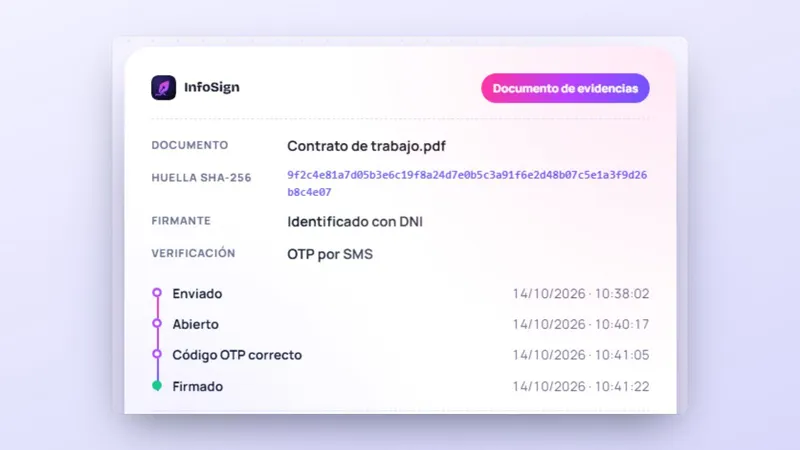
If someone disputes the signature, what will help you most is the record of how it was done. With InfoSign, each signed document comes with its evidence document, which records:
- the document's fingerprint before and after signing, so that any later change is detected;
- the date and time of each step: sending, opening and signing;
- the IP address and the device it was signed from;
- how the signatory was identified and, if activated, their one-time code.
In addition, each signed document carries a qualified timestamp, issued by a provider that appears on the Ministry's trusted list. The timestamp fixes the date and time of the document. The type of signature does not change because it carries one.
What value does a document signed this way have
Under art. 25.1 of the eIDAS Regulation, an e-signature cannot be denied legal effect or admissibility as evidence solely on the grounds that it is in electronic form. Art. 25.2 adds that only a qualified signature has a legal effect equivalent to that of a handwritten signature. In Spain, Ley 6/2020 (Spanish law on electronic trust services) applies, in force since 13/11/2020, which repealed Ley 59/2003 (the previous Spanish e-signature law). If your contract template still cites that law, it needs updating.
If the other party challenges a document signed with a non-qualified service, it has to be proved, according to art. 326.3 of the Ley de Enjuiciamiento Civil (Spanish Civil Procedure Act). That is what the evidence document you keep is for. Which evidence is worth presenting is covered in how an e-signature is proved before a judge, and the full framework on the page about the eIDAS regulation.
Before sending a batch of contracts, check each worker's email and mobile number in your management software. A wrongly entered detail leaves that contract stuck while the rest get signed.
Mistakes that force you to repeat the signature or leave you without proof
| Mistake | What happens | How to avoid it |
|---|---|---|
| Email or mobile wrongly entered in the record | The code doesn't arrive and the document stays unsigned | Check the contact details before each bulk send |
| Sending a draft | The fingerprint changes with any correction and the signature has to be repeated | Send only the final, reviewed version |
| Sending the PDF by messaging app and getting it back as a photo | There is no record of the sending, the opening or the signatory's identification | Use a process that generates its own evidence document |
| Filing the signed document without its evidence | You lose the fingerprint and the times of each step if someone challenges it | Keep them together; in InfoSign they return together to your server |
| Not checking the status until month end | Unsigned contracts with the worker already in post | Use monitoring and reminders |
| Assuming every signature is equivalent to a handwritten one | Only the qualified one has that effect (art. 25.2 eIDAS) | Choose the type of signature according to the document |
If the document is an employment contract and the person is far away, you will find the steps you shouldn't skip in how to sign employment contracts remotely.
What to do now with your next document
- Note down which documents you sign each month and how many: contracts, extensions, addenda, quotes or consignment notes.
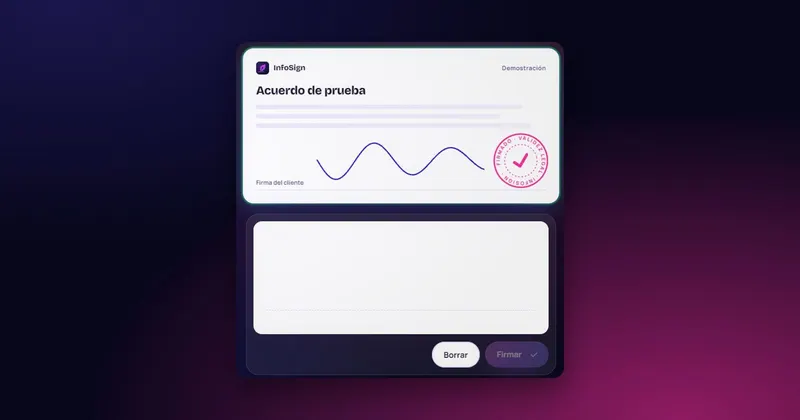
- Try how the signatory will see it in the "Sign here" box on the InfoSign home page. It is only a demonstration: your signature is neither saved nor sent.
- Check that your management software has the email and mobile number of each person who has to sign.
With that list, request more information and tell us which management software you use: we will call you and show it to you with your own documents. If you prefer, call +34 959 54 07 12 or message us on WhatsApp at +34 621 39 39 47.

 Test agreement