
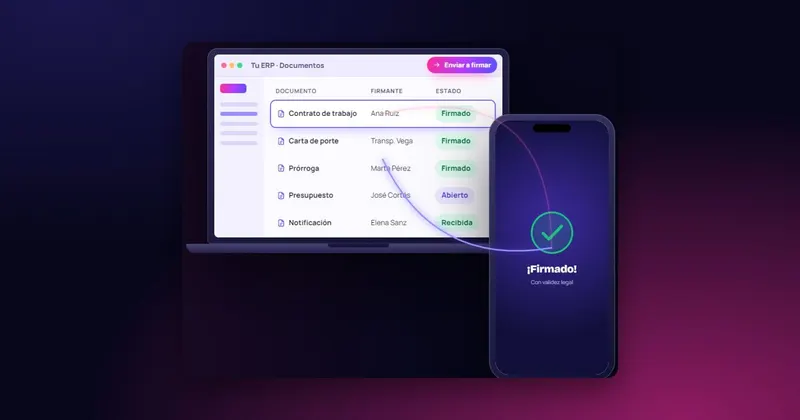
A quote sent is not a sale. Between the customer receiving it and returning it signed, days go by: they print it (or don't), sign it (or forget to), scan it (crookedly) and email it back (to the wrong address). Meanwhile, the order doesn't start and the customer keeps looking at other offers. Signing the quote on a mobile phone shortens that journey and, at the same time, makes it clear exactly what was accepted. Here is how to set it up.
Why quotes get stuck
Delays almost never come down to price. They come down to friction:
- The customer has no printer to hand or is out of the office.
- The quote arrives in an email that gets lost among a hundred others.
- The acceptance is ambiguous: an "OK, go ahead" in a message that nobody can later link to a specific version.
- There are several versions and it isn't clear which one was approved.
- Two people have to sign at the customer's company and each is in a different place.
Each of these problems can be solved if the quote is signed on the same device it is read on.
What a quote should include before it is signed
Before thinking about the signature, review the document. A quote that is going to be accepted with a signature should leave little room for interpretation:
- Full details of the customer and your company.
- Quote number and date, to tell it apart from earlier versions.
- A description of what is included and, where appropriate, what is not.
- Price, taxes and payment terms.
- Delivery or completion time.
- Validity of the offer (for example, 30 days).
- Specific conditions: advance payments, price reviews, penalties.
- An acceptance section that says what signing means: "The customer accepts this quote and its conditions".
The signing process, step by step
- Generate the quote in your management software, as usual.
- Send it for signing instead of sending it as an attachment. The customer opens it on their phone, tablet or computer.
- The customer reads it in full and signs with a finger or the mouse, without installing anything.
- If several people need to sign (the manager and the purchasing manager, for example), each signs the same document from wherever they are.
- You receive the signed quote and can launch the order without waiting for paper.
If the customer is with you, at the counter or during a sales visit, they can sign on the spot on the salesperson's tablet. If they are far away, they sign on their own phone. The document is the same.
Tracking: knowing where each quote stands
A less obvious advantage of signing digitally is that you can see the status of each quote. A customer who hasn't opened the document is not the same as one who opened it three days ago and hasn't signed:
| Status | What it usually means | What to do |
|---|---|---|
| Sent, not opened | They haven't seen it or it got lost | Send a reminder and check the contact details |
| Opened, not signed | They are weighing it up or have doubts | Sales call to resolve them |
| Signed | Sale closed | Launch the order or the job |
This information is gold for the sales team: it lets them call at the right moment and with the right question.
From signed quote to order
A quote that has been accepted and signed stops being a mere offer: it is the agreement on what you are going to do, at what price and within what timeframe. That is why it pays to plan the next step in advance rather than rely on someone remembering:
- If you ask for an advance payment, state it in the quote itself, with the amount and payment method. If payment is to be made by direct debit, you can send the SEPA mandate for signing at the same time, so the customer doesn't have to fill in another form later.
- If there are general terms and conditions (warranty, claim periods, price reviews), include them in the document that is signed or as an annex within the same file. A link to a website that may change tomorrow is not the same as a signed text.
- If the job changes along the way, document the additions with a new quote or a signed annex. It is the simplest way to avoid arguments over the final invoice.
- If the quote expires unsigned, don't treat it as valid months later without reviewing prices and timeframes: send an updated version.
With this in place, the signed quote becomes the reference for the whole job: sales knows what was sold, production knows what to do and accounts knows what to invoice.
Common mistakes
- Changing the quote after sending it without issuing a new one. If there are changes, create a new version with a new number and a new signature.
- Accepting by message rather than by document. A "go ahead" in a chat doesn't make it clear what was accepted.
- Not setting the validity of the offer. A quote with no expiry date can be claimed months later at prices that are no longer yours.
- Not storing the signed copy with the order. If there are discrepancies at invoicing, the signed quote is the reference.
- Asking the customer to go through complicated steps (installing software, certificates) to accept something simple. The more friction, the longer it takes.
Signing quotes with InfoSign
Quotes are one of the documents that InfoSign lets you sign, along with sales contracts, non-disclosure agreements and SEPA mandates. The quote comes out of your management software, the customer receives it with your logo and corporate image, and signs it from any device with a browser, without installing anything. It supports several signatories on the same document, and you can monitor the process in real time and send reminders if the signature is delayed.
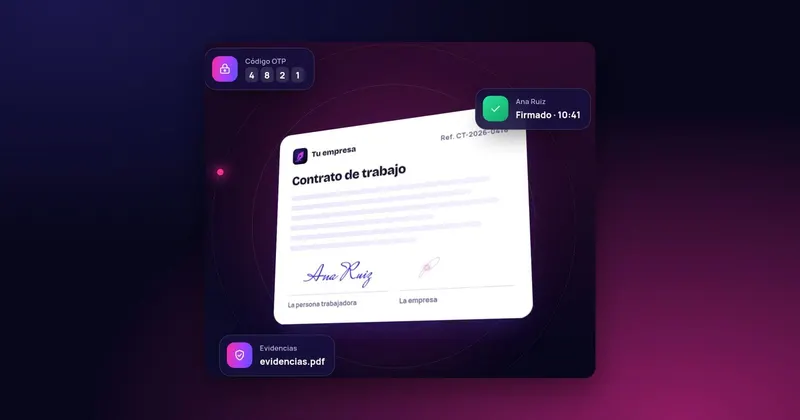
When the customer signs, you instantly receive the signed quote and its evidence document, and it is digitised straight away on your server. See how it works in e-signature of documents and how it connects to your software in e-signature integrated with your ERP.

 Test agreement